15 Claude Chrome Extension Shortcuts Every SEO Should Steal
Turn the Claude Chrome extension into an SEO autopilot. 15 ready-to-use shortcuts with scheduling for GSC submissions, rank monitoring, competitor tracking, and more.
 By Vytas Dargis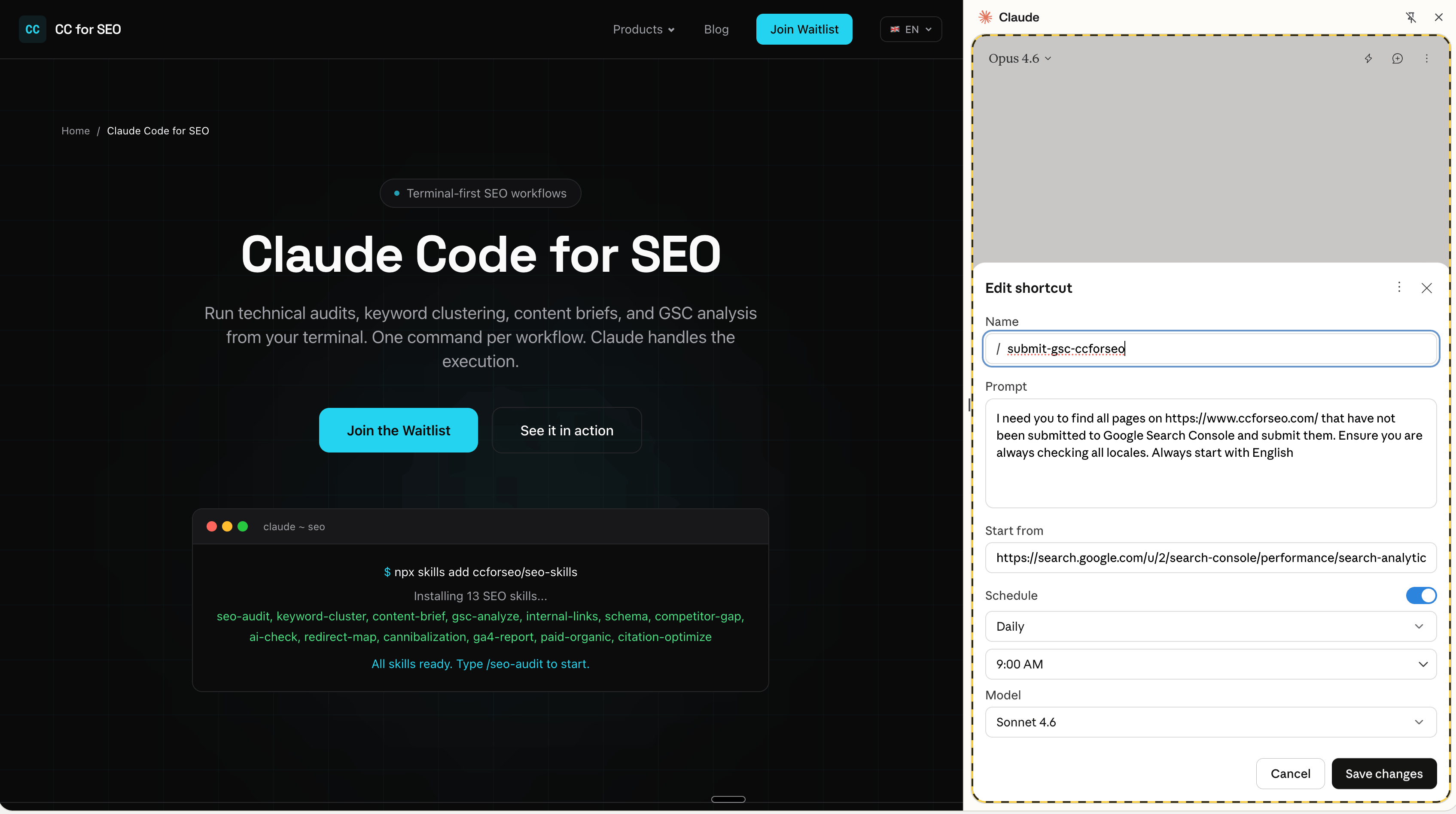
Key Takeaways
- Claude in Chrome shortcuts save repeatable SEO workflows as slash commands you trigger with a single
/keystroke - Scheduled shortcuts run daily, weekly, or monthly on autopilot, turning your browser into a passive SEO monitoring system
- Each shortcut has a "Start from" URL, so Claude navigates directly to the right tool, dashboard, or platform page
- 15 production-ready shortcuts below, covering GSC submissions, rank checks, competitor monitoring, technical audits, and reporting
- Best on Max/Team plans where you get Opus 4.6 or Sonnet 4.5 for complex multi-step tasks; Pro plans run Haiku 4.5 only
- Pair these with Claude Code terminal workflows for the full SEO command center setup
What Claude in Chrome Does (and Why SEOs Should Care)
Claude in Chrome is Anthropic's browser extension that reads, clicks, and navigates websites inside a side panel while you browse. It can fill forms, extract data from tables, click through paginated results, and interact with any web interface you'd normally work through manually.
Three features make it relevant for SEO work:
- Shortcuts (slash commands) let you save a prompt + starting URL as a reusable workflow. Type
/and pick it from the list. - Scheduling lets you run any shortcut on a recurring cadence: daily, weekly, monthly, or annually. Claude runs it at the specified time and notifies you when done.
- Workflow recording lets you demonstrate a task while Claude watches your screen, then saves it as a shortcut automatically.
The extension has built-in navigation knowledge for Google products (Calendar, Gmail, Docs), Slack, and GitHub. For SEO tools like GSC, Ahrefs, or Semrush, you provide the starting URL and Claude figures out the interface from the page structure.
All shortcuts below follow the same format: a name, a prompt describing the task, and a "Start from" URL pointing Claude at the right page.
CC for SEO Command Center
Pre-built Claude Code skills for technical audits, keyword clustering, and GSC/GA4 analysis.
Be the first to get access
The 15 Shortcuts
1. Auto-Submit New URLs to Google Search Console
This is the shortcut from the screenshot at the top of this article. It finds pages on your site that haven't been submitted to GSC and submits them through the URL Inspection tool.
| Detail | Info |
|---|---|
| Shortcut name | /submit-gsc |
| Start from | https://search.google.com/search-console/performance/search-analytics?resource_id=... |
| Schedule | Daily, 9:00 AM |
| Model | Sonnet 4.5+ recommended |
Prompt:
Find all pages on https://www.yoursite.com/ that have not been submitted to Google Search Console and submit them. Ensure you are checking all locales. Start with English.
This catches new blog posts, localized pages, and programmatic URLs that might sit undiscovered for days. Especially useful for sites with i18n where each locale generates a separate URL.
2. Weekly GSC Performance Snapshot
Pull your top queries, pages, and CTR data from Search Console without exporting CSVs.
| Detail | Info |
|---|---|
| Shortcut name | /gsc-weekly |
| Start from | https://search.google.com/search-console/performance/search-analytics?resource_id=... |
| Schedule | Weekly, Monday 8:00 AM |
| Model | Sonnet 4.5+ |
Prompt:
Extract the top 50 queries by clicks and top 30 pages by impressions for the last 7 days. Compare to the previous 7-day period. Flag any query that dropped more than 20% in clicks or any page that lost more than 30% impressions. Format as a table.
3. Index Coverage Error Monitor
GSC's indexing report buries problems behind multiple clicks. This shortcut surfaces them daily.
| Detail | Info |
|---|---|
| Shortcut name | /index-errors |
| Start from | https://search.google.com/search-console/index?resource_id=... |
| Schedule | Daily, 7:00 AM |
| Model | Haiku 4.5 (fast enough) |
Prompt:
Check the Pages indexing report. List all error types with their page counts. If any error type has more than 10 affected pages, list the first 5 example URLs. Flag any new error types that weren't present yesterday.
4. Competitor Blog Post Monitor
Track when competitors publish new content. Claude visits their blog, reads what's new, and summarizes it.
| Detail | Info |
|---|---|
| Shortcut name | /competitor-blog |
| Start from | https://competitor.com/blog |
| Schedule | Daily, 10:00 AM |
| Model | Haiku 4.5 |
Prompt:
Scan this blog page for any posts published in the last 7 days. For each new post, extract: title, URL, publish date, and a 2-sentence summary of the topic. If no new posts exist, say "No new posts."
Create one shortcut per competitor. Run 3-5 in parallel each morning for a daily competitive content briefing.
5. SERP Feature Tracker for Target Keywords
Check whether your pages appear in featured snippets, People Also Ask, or AI Overviews for your money keywords.
| Detail | Info |
|---|---|
| Shortcut name | /serp-check |
| Start from | https://www.google.com/ |
| Schedule | Weekly, Wednesday 9:00 AM |
| Model | Sonnet 4.5+ |
Prompt:
Search Google for these keywords one at a time: [keyword 1], [keyword 2], [keyword 3]. For each, note: (1) Does an AI Overview appear? If so, which domains are cited? (2) Is there a featured snippet? Who owns it? (3) Where does yoursite.com rank in the organic results? Record the position number. Format results as a table with columns: Keyword, AI Overview (Y/N), AI Overview Sources, Featured Snippet Owner, Our Position.
6. Google AI Overview Citation Check
Dedicated check for whether AI Overviews cite your content. Different from the SERP check above because this one focuses on citation extraction only, runs on more keywords, and tracks changes week-over-week.
| Detail | Info |
|---|---|
| Shortcut name | /ai-overview-check |
| Start from | https://www.google.com/ |
| Schedule | Weekly, Friday 8:00 AM |
| Model | Sonnet 4.5+ |
Prompt:
Search Google for each keyword in this list: [your 10-20 target keywords]. For each search that triggers an AI Overview, extract every source URL cited in the overview. Note whether yoursite.com appears as a source. Summarize: total searches with AI Overviews, how many cite us, which competitor domains appear most frequently.
7. PageSpeed Insights Batch Audit
Run Core Web Vitals checks on your key pages without manually entering each URL.
| Detail | Info |
|---|---|
| Shortcut name | /pagespeed-audit |
| Start from | https://pagespeed.web.dev/ |
| Schedule | Monthly, 1st at 6:00 AM |
| Model | Sonnet 4.5+ |
Prompt:
Test these URLs one at a time in PageSpeed Insights (mobile): [URL1], [URL2], [URL3], [URL4], [URL5]. For each, record: Performance score, LCP, INP, CLS, and FCP. Flag any page scoring below 80 or with LCP above 2.5s. Format as a table.
Get Weekly Claude Code SEO Tips
Workflows, skills, and tactics for SEO professionals using Claude Code.
No spam. Unsubscribe anytime.
8. Schema Validation Check
Validate your structured data through Google's Rich Results Test without clicking through each page manually.
| Detail | Info |
|---|---|
| Shortcut name | /schema-check |
| Start from | https://search.google.com/test/rich-results |
| Schedule | Monthly, 15th at 7:00 AM |
| Model | Sonnet 4.5+ |
Prompt:
Test these URLs for rich result eligibility: [URL1], [URL2], [URL3]. For each, report: detected schema types, any errors or warnings, and whether the page is eligible for rich results. Flag any URL with errors.
9. GA4 Traffic Drop Detector
Check GA4 for sudden traffic drops before your client or boss notices.
| Detail | Info |
|---|---|
| Shortcut name | /ga4-drops |
| Start from | https://analytics.google.com/analytics/web/#/p{PROPERTY_ID}/reports/dashboard |
| Schedule | Daily, 8:00 AM |
| Model | Sonnet 4.5+ |
Prompt:
Compare today's organic traffic (Sessions from "Organic Search" channel) to the same day last week. If traffic dropped more than 25%, identify the top 5 landing pages with the biggest absolute drop. Check if these pages still appear in Google by searching their titles. Report findings.
10. Competitor Pricing Page Monitor
Pricing changes signal strategic shifts. Catch them the day they happen.
| Detail | Info |
|---|---|
| Shortcut name | /competitor-pricing |
| Start from | https://competitor.com/pricing |
| Schedule | Weekly, Monday 7:00 AM |
| Model | Haiku 4.5 |
Prompt:
Extract all pricing tiers, plan names, and prices from this page. List each tier with: name, monthly price, annual price (if shown), and the top 5 listed features. Compare to what I told you last time (or note "first run" if this is the first check). Flag any changes.
Note: Claude in Chrome lacks cross-session memory as of March 2026 (Claude Help Center). To track changes over time, have the shortcut output to a Google Doc or Sheet you keep open.
11. Broken Link Scanner on Key Pages
Check your highest-traffic pages for broken outbound and internal links.
| Detail | Info |
|---|---|
| Shortcut name | /broken-links |
| Start from | https://www.yoursite.com/your-top-page |
| Schedule | Weekly, Sunday 6:00 AM |
| Model | Sonnet 4.5+ |
Prompt:
Click every link on this page (both internal and external). For each link, note if it loads successfully or returns an error (404, 500, timeout, redirect chain). Report only broken or problematic links with their anchor text and destination URL.
12. Google Business Profile Review Monitor
For local SEO: catch new reviews before your client sees them.
| Detail | Info |
|---|---|
| Shortcut name | /gbp-reviews |
| Start from | https://business.google.com/reviews |
| Schedule | Daily, 9:00 AM |
| Model | Haiku 4.5 |
Prompt:
Check for new reviews posted in the last 24 hours. For each new review, extract: star rating, reviewer name, review text, and date. Flag any review with 1-2 stars as urgent. Summarize the overall sentiment of new reviews.
Pair with the Claude Code for Local SEO workflows for GBP optimization.
CC for SEO Command Center
Pre-built Claude Code skills for technical audits, keyword clustering, and GSC/GA4 analysis.
Be the first to get access
13. Semrush/Ahrefs Keyword Position Export
Pull position tracking data from your SEO tool without digging through the UI.
| Detail | Info |
|---|---|
| Shortcut name | /rank-export |
| Start from | https://app.semrush.com/projects/{PROJECT_ID}/positions/ |
| Schedule | Weekly, Monday 8:30 AM |
| Model | Sonnet 4.5+ |
Prompt:
Extract the position tracking data visible on this page. For each keyword, capture: keyword, current position, previous position, search volume, and URL. Sort by biggest position change (negative first). Flag any keyword that dropped out of page 1 (position > 10) this week. Format as a table.
Works the same way with Ahrefs Rank Tracker. Change the start URL to https://app.ahrefs.com/rank-tracker/overview/....
14. Sitemap vs. Indexed Pages Reconciliation
Compare what's in your sitemap against what GSC reports as indexed.
| Detail | Info |
|---|---|
| Shortcut name | /sitemap-audit |
| Start from | https://search.google.com/search-console/sitemaps?resource_id=... |
| Schedule | Monthly, 1st at 7:00 AM |
| Model | Sonnet 4.5+ |
Prompt:
Go to the Sitemaps report. For each submitted sitemap, note: URL, type, submitted date, last read date, discovered URLs count, and status. Then go to the Pages indexing report and note total indexed pages. Calculate the gap between submitted URLs and indexed pages. If the gap exceeds 20%, flag it and list likely causes (noindex tags, crawl errors, thin content).
15. AI Search Brand Mention Check
Monitor whether ChatGPT, Perplexity, and Google AI Mode mention your brand when answering questions in your niche.
| Detail | Info |
|---|---|
| Shortcut name | /ai-brand-check |
| Start from | https://chatgpt.com/ |
| Schedule | Weekly, Thursday 10:00 AM |
| Model | Sonnet 4.5+ |
Prompt:
Ask ChatGPT: "What are the best tools for [your niche]?" and "How do I [your core use case]?" Copy the responses. Then navigate to https://www.perplexity.ai/ and ask the same two questions. For each response, note: (1) Is our brand mentioned? (2) Which competitors are mentioned? (3) Is a link to our site included? Summarize brand visibility across both platforms.
This is the manual version of what dedicated AEO monitoring tools do. Good for validating whether your content optimization is working before investing in API-based tracking.
How to Set Up Your First Shortcut
The setup takes about two minutes per shortcut:
- Open the Claude side panel in Chrome (click the extension icon or press the keyboard shortcut)
- Run the workflow manually first. Type your prompt in the chat, let Claude navigate and complete the task, verify the results
- Save as shortcut. Click "Convert to task" in the conversation header, or hover over your prompt and click the save icon
- Set the Start from URL. Edit the shortcut and paste the URL where Claude should begin
- Toggle scheduling on. Click the clock icon, pick your frequency and time, choose your model
- Test once. Let it run and check the output before trusting it on autopilot
Alternatively, use workflow recording: click the record icon, demonstrate the task yourself while narrating what you're doing, and Claude generates the shortcut from your actions (Claude Help Center).
Tips for Reliable Shortcuts
Be specific in your prompts. "Check my rankings" is too vague. "Search Google for [keyword], note the organic position of yoursite.com, record whether an AI Overview appears" gives consistent results.
Add verification steps. Include "Process all items" or "Check all 10 keywords" in your prompt. Claude in Chrome can stop mid-task on long lists if you don't explicitly state the scope (Claude Help Center).
Use the right model for the task. Haiku 4.5 handles simple data extraction (review monitoring, blog scanning). Sonnet 4.5 or Opus 4.6 for multi-step workflows that require reasoning (comparing data, identifying anomalies). On Pro plans, only Haiku 4.5 is available, so Max or Team plans get the most value from complex shortcuts.
Output to a persistent location. Since Claude in Chrome lacks cross-session memory, have your shortcuts paste results into a Google Doc or Sheet. That way you build a historical record.
Start small. Get 3-5 shortcuts running reliably before scaling to 15. Debug one broken workflow before adding the next.
What This Doesn't Replace
Claude in Chrome operates through the browser UI, which means it's slower than API-based tools. A scheduled shortcut checking 10 keywords on Google takes minutes, not seconds. For high-volume rank tracking (500+ keywords), you still need Semrush, Ahrefs, or a dedicated SERP API.
The extension also can't access financial services, work across browser sessions, or remember what it found last week. It's a workflow automation layer on top of existing tools, not a replacement for them.
Where it shines: the 15-30 minute manual tasks that aren't worth building an API integration for but are too tedious to do every day. Submitting URLs to GSC. Skimming competitor blogs. Spot-checking SERP features. These are the tasks that fall through the cracks when you're busy, and they're exactly what scheduled shortcuts were built for.
FAQ
Do I need a paid Claude plan to use shortcuts and scheduling?
Yes. Claude in Chrome is available on all paid plans (Pro, Max, Team, Enterprise). Pro plans only get Haiku 4.5, which handles simple shortcuts fine. Max and Team plans give you Sonnet 4.5 and Opus 4.6 for complex multi-step workflows (Claude Help Center).
Can Claude in Chrome log into my SEO tools?
Yes, if you're already logged into Semrush, Ahrefs, GSC, or GA4 in Chrome. The extension works within your existing browser sessions and cookies. You don't need to provide credentials separately.
Will Google flag automated interactions with Search Console?
Claude interacts through the standard browser UI the same way you would. It clicks, reads, and navigates. There's no API abuse or headless browser behavior. That said, avoid running high-frequency automated searches on Google itself (the SERP check shortcuts), as Google may trigger CAPTCHAs. Keep SERP checks to reasonable volumes: 10-20 keywords per run.
Can I share shortcuts with my team?
As of March 2026, shortcuts are stored per-user and can't be shared directly. You can share the prompt text and starting URL with your team so they can recreate the shortcut. Team and Enterprise plans may add shared shortcut libraries in the future.
How does this compare to using Claude Code for SEO?
Different tools for different workflows. Claude Code runs in your terminal, works with local files, and handles data-heavy tasks: processing CSV exports, running Python scripts against APIs, generating reports from JSON data. Claude in Chrome works in the browser, interacts with web UIs, and handles tasks that require clicking through dashboards. The most effective setup uses both: Claude Code for data processing and analysis, Claude in Chrome for browser-based monitoring and submissions.
Does Chrome need to be open for scheduled shortcuts to run?
Yes. Scheduled shortcuts execute within Chrome. If Chrome is closed or your computer is asleep at the scheduled time, the task won't run. Keep Chrome running during your scheduled windows, or use a dedicated machine / always-on workstation for critical automations.

Founder, CC for SEO
Martech PM & SEO automation builder. Bridges marketing, product, and engineering teams. Builds CC for SEO to help SEO professionals automate workflows with Claude Code.
Read these next
AI Visibility Tools for SEO: SaaS Platforms vs Claude Code Workflows
Compare 9 AI visibility platforms (Peec AI, Scrunch, Semrush) against building your own monitoring with Claude Code. Honest breakdown of when to buy vs build.
Technical SEOAutomate Technical SEO Audits with Claude Code
Run crawl-based audits, detect broken schemas, analyze server logs, and fix internal linking issues using Claude Code. Built for technical SEOs.
Data AnalysisB2B SaaS SEO: Connect Rankings to Pipeline
Map organic rankings to pipeline revenue using Claude Code. Combine GSC data with GA4 conversions and CRM exports to prove SEO's business impact.
Automate Your SEO Workflows
Pre-built Claude Code skills for technical audits, keyword clustering, content optimization, and GSC/GA4 analysis.